









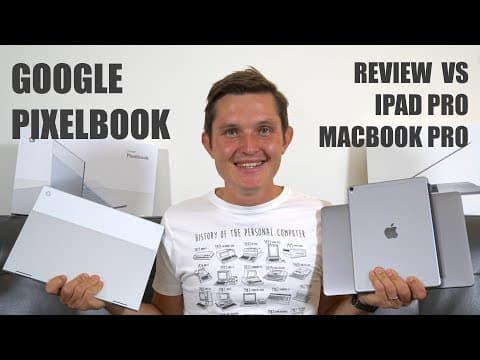
Google Pixelbook Review - Real Life Test And Comparison vs iPad Pro vs Macbook Pro
By Sander SaarPublished Updated Length
Loading YouTube player.
Google Pixelbook Review - Real Life Test And Comparison vs iPad Pro vs Macbook Pro
This video presents a detailed review of the Google Pixelbook based on two weeks of use, comparing it directly with the iPad Pro and the MacBook Pro. The host examines hardware build quality, dimensions, processor performance, screen characteristics, speaker layout, and battery life. Additionally, the review covers the stylus experience between the Pixelbook Pen and Apple Pencil, as well as the software ecosystem issues stemming from running Android apps on Chrome OS.
Watch on AgentCDNChapters
Introduction to the Google Pixelbook
Sander introduces his review of the Google Pixelbook after two weeks of daily use, comparing it against the iPad Pro and MacBook Pro.
Look and feel
The host examines the hardware materials, keyboard, trackpad, and overall build quality of the Pixelbook alongside the iPad Pro and MacBook Pro.
Form factor and size
A direct physical comparison highlights the differences in dimensions, aspect ratios, and weight among the three devices.
Performance and speed
The review covers the Intel Kaby Lake processor in the Pixelbook and compares single-core and multi-core Geekbench benchmark results.
Screen quality and comparison
A detailed display evaluation compares screen reflection, brightness nits, refresh rates, and color accuracy across the Pixelbook, iPad Pro, and MacBook Pro.
Speakers and audio quality
The speaker layout and audio performance are evaluated, noting how sound is affected when using the Pixelbook in tablet mode versus laptop mode.
Battery life test
Real-world battery longevity is reviewed, highlighting the substantial battery drain caused by running Android apps versus Chrome web apps.
Pixelbook Pen vs Apple Pencil
The review tests stylus responsiveness, palm rejection, and Google Assistant integration using the Pixelbook Pen compared to the Apple Pencil.
Software experience and Android apps
The host discusses the confusing mix of Chrome OS and Android apps, highlighting duplicate apps, scaling glitches, and app incompatibility issues.
Conclusion and verdict
Sander summarizes his final thoughts on the Google Pixelbook's hybrid shortcomings and provides recommendations based on specific user needs.
Transcript
Hi everybody, I'm Sande and I believe in technology. I got really excited when about a month ago Google announced during their keynote the launch of a Pixelbook, a Google-made hybrid of laptop and tablet, in order to replace my iPad Pro and my MacBook Pro for casual and work use. After 2 weeks of pushing this as my daily driver, the honeymoon phase seems to have faded. Let's take a closer look.
Being almost an all-in Google person using Gmail, Calendar, Google Drive, Google Keep for taking notes, Photos, Maps, Translate, and so on, I was really excited when Chromebooks initially were announced 3, 6 years ago that for $300 you can get almost everything done for me apart from editing. But they never had powerful processors or great screens in order to become my daily driver because the goal was different.
The goal was to bring a access to computers to almost everybody in the world. So they've spread like wildfire in universities and schools who adapted them very, very quickly. Pixelbook on paper ticked all of those boxes for me. It had strong powerful processors as well as fast memory, good screen, great form factor in a tablet laptop, great design by Google, and also hardware that is made in sync by the same company so the software and hardware can work really well together.
Let's see how it's turned out from hardware and software point of view, and also compare and contrast it with a 10.5-inch iPad Pro and also 2016 MacBook Pro 13-inch. First of all, when digging into the hardware, let's look at the look and feel and the form factor. It's definitely distinctively Google of the Pixel family. It's got glass and metal design all the way, just feels sturdy and clean.
It's also got the great keyboard, very similar to the new MacBooks where it's got the lower travel but just tiny bit more. It's got a glass mouse area as well, so it just feels great to use. It is featuring soft rubber palm rests and also rubber feet underneath in order to also keep it protected in a tablet mode. Its product design and quality of the materials and finishes only before seen on Apple devices. I must say I'm a fan.
In terms of price, the $999 Pixelbook is right in between the iPad Pro at $649 and MacBook Pro 13 starting from $1,299. When comparing the form factor to iPad Pro and also MacBook Pro 13, the first difference is the aspect ratio. While Google Pixelbook is slightly higher in its width, it's actually narrower in its depth compared to MacBook Pro 13.
So all in all, they're actually quite similar size, just different aspect ratio. While it's using 4:3, MacBook Pro is using 16:10. IPad Pro is using a 16:9 aspect ratio and being a much smaller feeling device altogether. It weighs about 500 grams while MacBook is 1.36 kilos and the Pixelbook is 1.1 kilos. So it's definitely in more of the range of a laptop than a tablet in its form factor.
When looking inside the speed and power, the Pixelbook houses the latest 7th generation Intel Kaby Lake processor. So it doesn't get faster than that. i5 and i7 options available. The one that I compared here is the i5 option with 128GB of storage. When comparing the performance for single-core to iPad Pro and MacBook Pro 13, they're very similar. If we're looking at the multi-core processing, then there's nothing that will beat monster of the processor inside iPad Pro hitting more than 10,000 on Geekbench score, followed by MacBook Pro and Pixelbook at around 8,000.
They're all still very, very fast regardless of the score. They're snappy to use because they're all built together, the software and hardware, and you never really experience any lag on either of these devices. Screen is really the key of all of these devices because that's something you look at all the time and you want this to be really good, especially when you're looking at videos, reading text from the screens, and so on.
And I must say, I've never seen a better screen than on iPad Pro. Even though Pixelbook and all the other devices have a similar amount of pixel count and all between 230 to 240 pixels per inch, which really make them indistinguishable in their clarity, there's huge differences in the technology that they're using for the screens. The first thing that differentiates them for me on day-to-day use is the reflections. I'm actually getting a lot of reflections on the Google Pixelbook, and because the display doesn't seem to be fully laminated and there seems to be an air gap between the screen and the glass in between.
You don't really see that on iPad Pro, but you see it a little bit more on the MacBook Pro. The difference in reflections can also come from the brightness they're able to output. iPad has the brightest screen at 600 nits, followed by MacBook Pro at 500 nits, and 400-nit display for Pixelbook. The other differentiation for the screen is that while MacBook and Pixelbook are both 60Hz, iPad is housing a 120Hz screen.
So when you're scrolling, going through the apps, or reading, it's just much clearer, smoother experience. You just have to see it in order to make justice. iPad is also housing something that they call a True Tone display, which changes depending on the environment you're using the device in, which I really found pleasing to use. So I must say there is no better display for day-to-day use than what's in iPad Pro, followed by MacBook Pro. And actually, Pixelbook display is not that great to be used day-to-day.
It's a fantastic screen for clarity, but not so good in brightness, using the reflections, and also smoothness. Now let's talk about speakers, especially in the home use where you don't have your headphones in all the time. While Pixelbook and MacBook both house 2 speakers, iPad Pro has a 4-speaker system. The challenge that I found with Pixelbook is that the speakers, similar to MacBook, are facing you when you're using it in a laptop mode, and it sounds absolutely fine.
It's not fantastic, it doesn't have much bass, but it's fine. If you turn it into a tablet mode, the speakers will actually not face you anymore, and especially when you put it on a lap, you're actually reducing the sound coming from it. So when there's any other sounds in the flat, you might have a washing machine running, then it's actually very difficult to hear what's going on, and I had to use my headphones all the time. That's something to keep in mind. While the sound coming out from iPad is just amazing.
It's a stereo 4-speaker system, and there's nothing better that I found to use in a casual environment. Phone is not just our main camera, but sometimes also the only camera that we use daily. So I wanted to find out and also show you Which one is the best and how they compare. For many of us, phone is not just our main camera, but sometimes also the only camera that we use daily. Another thing from hardware perspective is also battery life.
All of these devices promise exactly the same 10-hour usage when watching videos or scrolling the web, the main, the mixed usage environment. The reality is that when I'm using a Pixelbook, I get around 5 to 6 hours when I'm using Chrome apps, or I'm using Chrome predominantly, which is very similar that I'm getting actually from MacBook Pro as well. While when I'm using Android apps, i.e., watching video on YouTube using Android apps or other more demanding applications, I'm only getting about 2.5 to 3 hours, which really shows how it's more optimized towards Chrome apps rather than Android apps, and it's really draining the battery if you're using it for that.
iPad, on the other hand, has definitely got the best battery life of all of them. I can use it for about 6 to 7 hours, sometimes even 8 hours when I'm just watching videos. Another optional hardware accessory that comes for an additional $99 is Apple Pencil and Pixel Pen. They both have great palm rejection, and on iPad I've actually been using it a lot for taking notes, sketching out mockups, and just using it for navigation as well.
It's just very accurate across almost all of the apps that I've been using it with. While on Pixel Pen, 95%, if not 99%, apps that you'll be using it with, it will be very laggy and actually not even usable at all. Biggest trick from software point of view that Google has up its sleeve is Google Assistant that is built across everything and works amazingly well. Obviously, it's very similar that you also find with Google Home, and you also found on other Pixel phone devices, but here you can also use your pen to circle around something by holding down the button and and it will find similar items or similar things that it will see on the screen.
That part doesn't work great, but as long as it's got some text on it, it works. This also gets us to the software experience overall. The software experience is confusing, and not just confusing to me, but also for Pixelbook itself. You're gonna have loads of duplicates. You're gonna have 2 Google Docs, one Chrome version and one Android version. You're gonna have 2 Google Sheets. You're gonna have 2 YouTubes. You're gonna have 2 Google Keep notes.
And so on. Generally speaking, when you're using it in laptop mode, the Chrome apps work much better, smoother, and in full functionality. On the other hand, when you turn it into laptop mode, then Chrome apps don't have the UI to support touch interface, especially when I'm using it with my slightly larger fingers. That makes me turn into the Android apps when using it in tablet mode, which again are not really optimized. You have the phone versions of the app which just look really narrow, as if you're looking at the phone screen on your tablet screen, And then you have the ones which can also go full screen, but they're not optimized usually for that large of a space compared to the other tablets for Android that are on the market.
For example, when using the Microsoft suite, which I have to use for work purposes, and using Outlook in Android app mode, the font is so small that it becomes almost impossible to read or work with it. On the other hand, when I'm using the same Android app in tablet mode, the scrolling doesn't work, so you have to use it in a touch interface. So Also, the developers have not built for both of these use cases. Most of those Android apps have been built with touch in mind, but for smaller screens, so they don't scale as well when you're putting them on a large screen.
Scaling Android apps on Pixelbook works to some extent in a similar way as scaling iPhone apps on iPad. They're just tiny versions, as if you're looking at the phone screen, and you can go sometimes make them bigger, but it doesn't make them more usable. And there's a whole list of small things that don't work across these experiences. For example, when I'm using a YouTube app for Android on the tablet mode, I can't scroll to the comments. I can't even use the touchpad on the laptop mode when I'm doing it.
Not to even talk about the non-optimized tiny icons that you have in most of the apps that make it hard to see or hard to navigate around. And in some of the worst cases, the apps are not even supported on this screen at all. For example, YouTube TV, which is Google's own app, cannot even be used at all. All on this Pixelbook. For other developers, for example Spotify, when you want to switch between the small screen and the large screen, the app has to restart every time you do it, which makes it really slow, sluggish, and not really usable in that way.
I'm sure it's a matter of time when developers start optimizing for these larger screens as well, but at the moment it's not a great experience, and I hope they do it quickly so the Pixelbook will reach the critical mass it needs to be relevant for developers. But currently I found myself not really using the Android apps at all because they have a massive drain on the battery as well as a not great user experience. So it's really a Chromebook device using Chrome apps, but not really in a tablet mode because then the Chrome apps would not work really well.
So it's a weird, confusing software experience. But when you're using it, I still recommend using the Chrome apps in a laptop mode and Android apps in the tablet mode because that seems to work best for me. And when you compare this to an iPad Pro or MacBook Pro, they have clear 2 distinct use cases, one in laptop and the other one in a tablet mode. And they deliver perfectly well in each of these environments because everything is designed around the user input using touch here, which is a great experience, and using a laptop mode on MacBook.
And now I also understand why Apple hasn't done touchscreen on a MacBook, because just from user experience point of view and from developer point of view, it doesn't make sense. So to conclude, Google with Pixelbook has managed to pull off a really great piece of hardware, super powerful and a great device overall, but they haven't been able to deliver on the promise of delivering a great hybrid experience or even having great Android app experience on the device.
And it's not just Google who's got a lot more work to do with making them energy efficient and work in terms of UI across both experiences, but also the app developers who have to jump on board and optimize their apps for the screen and for the touch as well as mouse and keyboard experiences. Pixelbook for me is also lacking the amazing screen that is housed inside iPad Pro, the True Tone, the 120Hz refresh rate which makes the super smooth experiences, the 4-speaker stereo system that's a great media consumption device.
They all have on the other hand great hybrid features like a full-size keyboard in iPad Pro as well as full-size keyboard in Chromebook. It's not easy to pull off a hybrid device and make it a great experience, and that's why Apple hasn't even attempted to do it yet. But with Google, they haven't done it either. If you were looking for a great Chromebook, you've got it here. It's Pixelbook. If you're looking for a tablet experience, there's nothing better than iPad at the moment on the market.
And if you still need your computer for editing or high-intensity tasks, there's nothing better than having a full-size laptop, be it PC or Mac. Thank you very much for watching. I hope you enjoyed this video. If you did, please give it a thumbs up, subscribe to the channel, and And let me know here which one do you think is the best combo to go for. Thanks again, and I hope to see you next time.