









Xiaomi Mi Drone Review - Unboxing, Setup and Flight Test
By Sander SaarPublished Updated Length
Loading YouTube player.
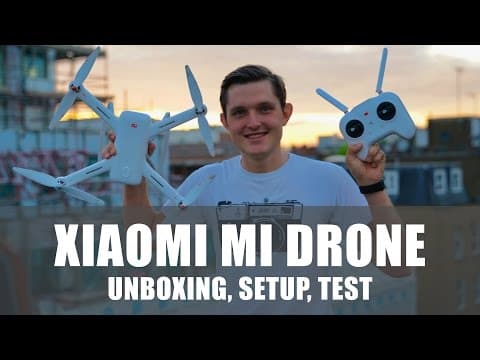
Xiaomi Mi Drone Review - Unboxing, Setup and Flight Test
This video presents a detailed review of the Xiaomi Mi Drone, starting with unboxing its components, translating the Chinese manual, and assembling the hardware. Sander examines the modular drone body, detachable camera gimbal, and remote controller before addressing the software setup challenges in London. The review continues with a rooftop flight test demonstrating automatic takeoff, landing, waypoint navigation, and the return-to-home feature, followed by sample aerial footage and final recommendations.
Watch on AgentCDNChapters
Introduction to the Xiaomi Mi Drone
Sander introduces the Xiaomi Mi Drone as Xiaomi's affordable competitor to DJI quadcopters and outlines the agenda for the review.
Unboxing the drone and accessories
Sander unboxes the Xiaomi Mi Drone package, detailing the drone body, detachable camera gimbal, remote, propeller blades, and accessories.
Translating the manual and assembly
Using Google Translate to decipher the Chinese user manual, Sander covers safety warnings, attaches the propellers, and locks in the camera gimbal.
Hardware overview and controller features
Sander explores the modular drone design, optical sensors, battery specifications, camera capabilities, and the layout of the remote controller.
Software setup and pairing challenges
Sander explains the difficulties of pairing the drone outside of China and demonstrates the required iOS app settings and Wi-Fi hotspot configuration.
App interface and flight features
Sander navigates through the companion app settings, discussing calibration, camera controls, map limitations in London, and automated flight options.
Flight test: auto takeoff, landing, and waypoint
Out on an urban rooftop, Sander tests the automated takeoff and landing functions before attempting manual waypoint navigation.
Testing circle mode and return to home
After finding the circle feature unavailable, Sander tests the drone's manual flight and the automated Return to Home switch.
Aerial camera sample footage
A showcase of aerial video captured by the Xiaomi Mi Drone displaying panoramic views of the London skyline and landmarks.
Conclusions and recommendations
Sander provides his final verdict on the Xiaomi Mi Drone, highlighting its gimbal stabilization and value while noting setup hurdles for international users.
Transcript
Hi everybody, I'm Sander and I believe in technology.
As you've seen from my channel, I'm a huge fan of drones, not just as toys to play with, but also how they can positively improve our lives.
Xiaomi, a company that I like a lot, not to call myself a fanboy, has released their answer to DJI's global success, a drone that costs 2.5 times as much as DJI's.
Let's take a look.
I'm a big fan of Xiaomi's products, from their battery packs to their mobile phone Xiaomi Mi 5, to their action cameras, to their headphones, to their home cameras, to their air and water purifiers. I'm a daily user and almost every time surprised on how Xiaomi manages to push the boundaries in terms of innovation and putting the latest technology into their products that cost a fraction and are often higher quality than what we're used to in the Western world.
In this video, the two come together, my passion for drones and excitement over Xiaomi's global success. Let's unbox the drone first, then look at the hardware that comes within the box, look at the software and the experience of setting it up, which for me was very frustrating, as to a lot of you that I've seen on the forums, and then also then take it to a flight, see all the software features working live, and also the image quality coming out from the camera.
Let's see what comes in the box, or boxes in this case, shall we say, because the drone and the camera unit, which can be HD or 4K, is actually in a separate box.
So let's open it up and see what it comes with.
As you can see, the drone is completely flat, so you have to open it up yourself. Let me put the drone itself on the side here. There you have the blades itself and also a mini screwdriver. These are the protectors And here's where you have the power cord itself as well as the power adapter.
And here's the camera element. Very simple, very straightforward. Wow, and that's it.
So there you have it.
Here's the drone, the blades, the remote, the charger, the camera unit, and the protectors.
Even though we put away the user manual straight away because they are in Chinese and we couldn't understand them, I just remembered that when I was in Japan,
and that's a quick tip to everybody who's using foreign manuals anywhere, you can use the Google Translate camera app that will translate live any text you have on it. There's flight indicator, security, a safety page here. This product, use this product only away from unmanned aircraft. Do not use in rain, dust. So let me just go through them with the Google Translate app here live and assemble it together to get ready for the flight.
First thing that we need to do is we need to put the remote and the battery on a recharge and then also install the blades. And the camera goes to the bottom. And in the bottom there's this one lever you need to push. This cap comes off when you don't want to fly with the camera, for example.
Looking at the hardware, the drone, the camera, and the remote control. The drone itself is using a 4-propeller system with detachable shields that it comes with. It's also a modular design, meaning that you can fold away the landing gear and also remove the detachable camera so you can put it in a normal backpack flat-packed rather than buying a specific one for your drone when you're traveling. It is also unbelievably lightweight by just weighing 670 grams net without the battery, and the frame is just about 1 millimeter thin.
It is using a very high voltage battery of 5100 milliamp hours in capacity, which gives you about 27 non-stop minutes of flight. For maximum precision and reach, they built in GPS and GLONASS both And they also have attached visual-based sensors and also a camera underneath to allow tracking in indoor environments or where the GPS or GLONASS signals are very low. The drone comes with detachable camera that is attached to a 3-axis gimbal that stabilizes up to 2,000 vibrations per second.
There are 2 options for the camera: a Full HD camera or a 4K Ultra HD camera, both with 104-degree wide-angle lens. The 4K camera captures 3840 by 2160 pixels and supports recording of stills in RAW format. It is also transmitting 720p live video with low latency from up to 2 kilometers of distance. The remote control has built-in PCB antenna array, which is the same one as they're using in their Wi-Fi routers, in the latest one that give you the widest range.
The remote control itself looks very similar to most of the other drones. It has 2 rockers, one of them to take the motors up and down, to the left and to the right, and the right rocker to also move the drone forward, backwards, and turn around its own axis to the right or to the left. It also has a couple of buttons on the front, one to power on the drone, the second one to turn on the automatic takeoff and automatic landing, and also the small orange switch here, which anytime during the flight you can turn it on and will bring the drone back home.
When looking at the bottom of the remote, it has a built-in micro USB charger to charge the remote, which has a built-in battery of also 5,000 milliamp hours, and also a normal USB out which is used to tether the image to your mobile phone, either iOS or Android, and also to charge it at the same time. When looking at the top of the remote, it also has an expandable mobile phone holder which slides out and you can put it in either a 6-inch phone or you can use the smaller holder for for the smaller 5-inch phones.
At the side of the remote, you have controls for the camera to tilt it up and down, and also 2 buttons at the back: A to just take a photo, and B to start and stop a video recording. The hardware itself will cost you about 24,099 yuan, which is about $380 for the Full HD version, and 3,000, 2,999 yuan, which is about $450 for the 4K Ultra HD version.
Now let's talk about the software that comes with the camera on your phone. First of all, it's all in Chinese, so if you're an English speaker, you would have to use either 2 phones, for example, as I was doing, so just hovering one over the other and using the Google Translate Live to actually see what's on the screen on every step when you're pairing it.
Or the other thing is just take a screenshot and then use Google Translate to see what's going on on the screen.
Once you understand what's on the screen, the connecting wouldn't get easier.
It was a terrible experience for me, or at least very frustrating, has been for many on the forum.
I tried with all of my phones and failed every single time, with my Nexus phone, with Xiaomi Mi 5, with Samsung Galaxy S7, with my iPhone, and it just didn't work.
Challenge with iOS app is that you can't find the app on the App Store because it's not using Latin alphabet unless you know the name of the developer. So here you go.
I was almost giving up after a week of trying. Finally, with the latest iOS update, on the 16th of July, I was finally able to pair them, connect them, and with these little tips, update the drone and get it off the ground. First of all, make sure you have the latest update, even though it might be in Chinese. You can live with that. Secondly, make sure that your phone tethering or portable hotspot is turned on from the menu, and not just for USB but for wireless as well.
Then connect your phone Wi-Fi with the camera Wi-Fi on the drone. And finally plug it into the remote. When logging in, you might still get an error.
Then just create a new Xiaomi Mi account and you should be fine and good to go.
Within the menus of the app, you're able to calibrate the drone itself as well as the camera, and you're also able to change the resolution and the frame rates for the recordings and the images. And you can turn on and off the novice or training mode, which you unfortunately can't do for the first 3 hours of flight. Within the flying controls screen, You should be able to see a map, which I'm unfortunately not able to see in London because that's outside of China. But the live image, which you can turn to another view, works perfectly fine.
Within the flying screen, you also have controls for auto takeoff and landing. You have a waypoint path planning, so you can take the drone to certain path and just control the camera. You can also circle around an object and define the radius of the circle you want to create around a specific point. The software itself also shows you your battery levels and also the connection to different GPS signals. The software intelligent, it detects low battery and returns home automatically.
It also has real-time location tracking for easy retrieval when you happen to crash, for example. It will also automatically hover at the edge of the no-fly zone so you make sure you're not getting into them. So the app experience itself is not great, but once you get it to update and get it to work, it's absolutely fine. I've not been able to achieve that on my Android phones just yet, but it works perfectly fine now on my iOS phone. As we're all set up now, Let's take the drone for a spin.
So first of all, let's test the auto takeoff on the drone itself. So what I'm going to do, I'm just going to push this one button and see what happens.
All right, that seemed to work perfectly fine. Literally one button operation and I didn't have to do absolutely anything for it. So let's also try to see how we can bring it down. By automatically using the same function. Now it's coming down, it's managed to stabilize itself. Let's see how well we can bring it down on the ground.
It wasn't definitely a perfect landing, but it worked without me touching any buttons on the controller. For the second test, we're gonna just try and use this waypoint system and send the drone to somewhere else where we can ourselves some filming in the meantime. And in this case, I'm not going to let it take off itself, I'm just going to do it myself. So holding down those 2 rockers to turn on the engines and then going straight up with this left one.
As you see, we're in the sky now, and let me try and use this on the remote itself. So use the waypoint. Yes. And the waypoint is just hovering over.
So this waypoint test totally failed because we can't really see it on the map, and when I pointed something somewhere else, it totally went crazy. I almost thought it's going to crash on the ground, but fortunately I was able to bring it back on the roof. That's something to keep in mind when you're using the drone actually outside of China, because you don't have the map to support it to properly point those waypoints and get the drone to fly there. I'm sure that might not be the case in China.
So another one that we're going to test is the circling around specific objects.
So let's just get it in the air, and I'm going to push the circle button and see what it does, and hopefully we're not going to lose control this time. And the circle button is not even active. So let me see if I need to go slightly further up to activate the circle button because it's still grayed out. And this seems to be the highest that I can go at the moment, and I'm still unable to activate it.
So I guess this is something that might activate after Third time after the kind of 3 hours of trials. But this time I'm not able to show you how this works just yet. Alright, so let's try and do some flying now. I'm going to do some filming at the same time and then bring the drone back using this orange come back home button. Let me turn on the engines again and then get up in the air.
Alright, so let's keep flying a little bit further away. And I'm also gonna go just a tiny bit higher while we do that. And let's say that I've now lost the drone, I've lost control of the drone, and I'm gonna try and use this come back home button on the remote, which is this orange one, and see how well it actually responds to that. So I've now turned it on. Looks like it takes a few seconds before it starts coming back to me.
And now it's coming at quite a high speed, so I guess it's trying to find me. It's not totally at the correct location at the moment, and it's flying a little further away, so I guess it's trying to locate itself as well. But it's not that far from the original location. And by the way, I can always turn off, seems like it's a little bit windy for the drone at the moment as So I'm going to turn the Follow Me Home off at the moment and then bring it back down myself.
But as you can see, the Come Back Home button works perfectly well. It just comes back, hovers you, you turn it back onto your remote control, and you can happily land it yourself. And now let's do just some filming and some photos for you to share and analyze and see how well the HD version of the Xiaomi Mi Drone actually holds up.
To wrap up our flight test, the promises that they make for auto takeoff and landing with one button absolutely work fine for people who are starting off. But I think in my case, actually, the landing was a little bit more unstable and more stable when I did it myself. Second software feature for using these waypoints to direct the drone in the sky actually don't work that well outside of China. As you saw, we were just saving the drone from a crash because it totally went crazy. I think the reason behind it is that those dots on a map don't really exist because you can't put them on a map that actually doesn't exist.
You have the no-fly zones visible on the map, But you can't see the map itself outside of China. So that's something to keep in mind. Do not use the waypoint and do not use the target mode. And finally, we tried the come back home button by turning on this home switch on the remote, and that worked perfectly fine as well, as long as you take over before it starts landing again, because it wasn't as accurate in my case. Obviously, I'm in a city with a ton of things around affecting the performance of the sensors and signals, but still, you can always turn it off before landing and take over yourself.
But it works fine if you lose your drone. For image quality or just flying around with it, I think the gimbal itself does an absolutely fantastic job in stabilizing the camera, and it's definitely some of the best out there that I've used on any of the other, for example, DJI drones. It is impressive what Xiaomi has managed to achieve this time once again. Obviously, the starting off bit is very frustrating to get it to work outside of the markets that they're actually supporting, but once you do that, it works absolutely fine.
So kudos to Xiaomi for making the Mi Drone as good as one consumer drone can possibly get. At the almost lowest price point out there in the market. I just hope that they will open up more international markets quicker and officially with official support as well, because that's something that frustrates a lot of customers who are trying to get access to their technology at the moment. But if you're a fan of drones and the latest technology within them, I'm sure this is something that will delight you, and I can't wait for the 4K Ultra HD edition to arrive.
So thank you very much for watching this video. I hope you enjoyed it. Please let me know by clicking on this I button here if you already own some Xiaomi products or you would like to get some. And also let me know in the comments if you'd like to see more videos on the Xiaomi drone and also in comparison with DJI, for example. Thanks again, and I hope to see you next time.